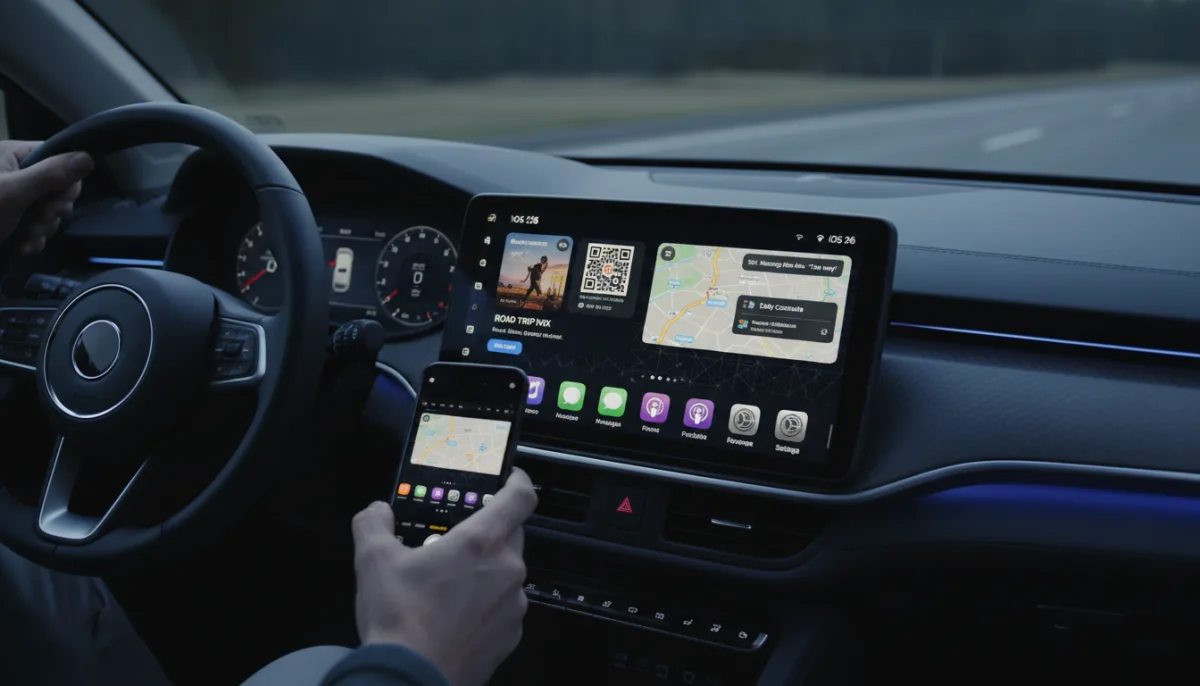
Mastering Apple CarPlay tips is essential for eliminating dashboard clutter and reducing driving distractions. While Apple’s in-car system offers a vastly superior infotainment experience compared to native manufacturer software, its default layout is rarely optimized for your specific daily commute. By tweaking a few hidden settings in iOS 26, you can transform your dashboard into a personalized, distraction-free command center.
Essential Prerequisites
- An iPhone updated to iOS 26 or iOS 26.2 for the latest features.
- A vehicle with built-in CarPlay support or an aftermarket wireless adapter like the CarlinKit 5.0.
How to Customize Your CarPlay Interface
Your favorite apps might be available, but you do not need all of them cluttering your dashboard. iOS 26 also introduces widgets and Live Activities to bring more dynamic data to your screen.
- Open the Settings app on your iPhone, tap General, select CarPlay, and choose your car's name to tap Customize.
This enables you to hide unwanted apps using the red minus sign and rearrange your Home Screen order for quicker access while driving. - Navigate to the Settings app directly on your CarPlay screen and select Wallpaper.
This allows you to replace the default background with one of Apple's pre-installed options to better match your vehicle's interior. - Select the Widgets menu under the CarPlay settings on your iPhone to add and re-order widget stacks.
This ensures you can view essential data at a glance, utilizing the Smart Rotate feature to intelligently switch between widgets based on your context. - Toggle the appearance modes between Default, Dark, and Clear within the CarPlay Settings app.
This enables icon tinting and dark mode adjustments, reducing eye strain during night driving.
How to Manage Messages and Focus Modes
CarPlay enhances in-car safety by discouraging physical phone interaction. Configuring your communication settings ensures your focus remains strictly on the road.
- Configure the Driving Focus mode via the Settings app on your iPhone to allow notifications only from specific contacts.
This ensures incoming calls and messages are blocked while driving, automatically sending a reply to inform contacts that you are behind the wheel. - Enable Announce Notifications by navigating to Settings, selecting Siri & Search, and turning on the feature for supported apps like Messages and WhatsApp.
This enables Siri to read your incoming messages aloud and allows you to dictate replies hands-free. - Disable Pinned Messages by opening the Settings app on your CarPlay screen and toggling the feature off.
This removes the controversial iOS 26.2 feature that pins conversations at the top of the Messages app, keeping your inbox view streamlined.
How to Optimize Audio Sharing and Connectivity
Whether you are running quick errands or embarking on a long road trip, managing your connection type and music queue improves the overall experience.
- Tap the SharePlay icon located in the upper-right corner of the Apple Music Now Playing screen to generate a QR code.
This enables passengers to scan the code and add songs to the queue or rearrange playback, even if they do not have an active Apple Music subscription. - Connect your iPhone using a wired cable for extended road trips, and rely on wireless CarPlay for quick trips around town.
This ensures a faster, more reliable connection with zero latency for Siri commands during long drives, while offering maximum convenience for frequent stops.
The Evolution from Mirrored Screen to Standalone OS
The introduction of widgets and Live Activities in iOS 26 signals a fundamental shift in how Apple views the in-car experience. CarPlay is no longer just a mirrored projection of your iPhone's basic apps; it is maturing into a context-aware dashboard. By allowing users to stack widgets and utilize Smart Rotate, Apple is directly addressing the fragmentation of modern infotainment systems, ensuring that critical data - like navigation prompts and media controls - coexist without requiring the driver to switch between full-screen apps.
Furthermore, the controversial addition and subsequent toggle for Pinned Messages in iOS 26.2 highlights Apple's ongoing struggle to balance robust communication features with driver safety. While the CarlinKit 5.0 adapter remains a practical $60 bridge for older vehicles, the heavy reliance on advanced iOS 26 features suggests that future CarPlay iterations will demand deeper native integration from automakers. Drivers who take the time to configure Driving Focus and SharePlay now are essentially future-proofing their habits for Apple's next generation of automotive software.
This article was written by AI from reporting by 9to5mac.com.