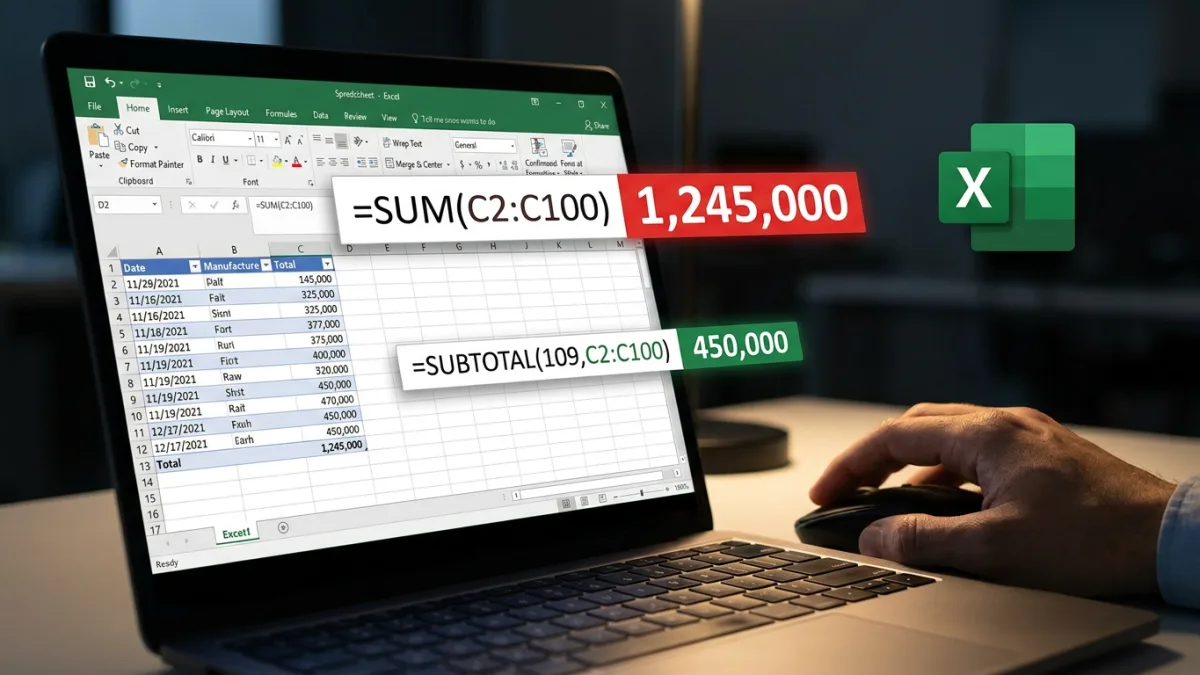
Excel users relying on the standard SUM function often face a frustrating reality: hidden or filtered rows quietly inflate their totals. For professionals managing large datasets or financial reports, this hidden data inclusion can sabotage accuracy. Switching to a dynamic alternative ensures that totals reflect only what is visible on the screen.
Why the SUM Function Falls Short
The standard SUM function is designed to add everything within a selected range, regardless of visibility. When users apply data filtering or manually hide rows, SUM continues to include those hidden numbers in the background. This behavior inflates the final total and creates discrepancies between the visible data and the reported figures.
The same limitation applies to other basic functions like COUNT and AVERAGE. Users often find themselves constantly tweaking formulas to explain why a filtered total appears larger than the sum of the visible rows.
How to Use the SUBTOTAL Function
The SUBTOTAL function resolves this issue by adjusting calculations on the fly. When data is filtered, the total updates automatically to include only the visible rows. Furthermore, SUBTOTAL is designed to prevent double-counting; it automatically skips any nested subtotals within the same range, avoiding the bloated numbers that occur when using nested SUM functions.
The syntax requires a function number followed by the range:
=SUBTOTAL(function_num, range)By changing the initial function number, users can switch between sum, average, count, and other calculations. Using numbers in the 100-series ensures that hidden rows are ignored.
| Function Number | Function |
|---|---|
| 101 | AVERAGE |
| 102 | COUNT |
| 103 | COUNTA |
| 104 | MAX |
| 105 | MIN |
| 106 | PRODUCT |
| 107 | STDEV |
| 108 | STDEVP |
| 109 | SUM |
| 110 | VAR |
| 111 | VARP |
Implementing Dynamic Calculations
Upgrading a spreadsheet workflow requires swapping out static formulas for their dynamic counterparts. For example, to sum a range while ignoring hidden cells, use the 109 function number:
=SUBTOTAL(109, C2:C15)This approach extends to counting visible rows. Instead of relying on a static COUNTA formula:
=COUNTA(A2:A15)Users can replace it with the corresponding SUBTOTAL function to ensure the count adjusts when data is filtered:
=SUBTOTAL(103, A2:A15)These formulas work identically in both Microsoft Excel and Google Sheets, making them universally applicable for day-to-day reporting.
The End of Static Spreadsheets
The persistence of the SUM function in professional environments highlights a broader issue with spreadsheet training. Most users learn the basics and stop, leaving their reports vulnerable to silent errors when data filtering is applied. By adopting SUBTOTAL, analysts eliminate the need for manual formula adjustments and manual auditing of hidden rows.
This shift is particularly critical for collaborative environments where files are frequently handed off between team members. A dynamic spreadsheet built with SUBTOTAL remains accurate regardless of who applies a filter or hides a row. Ultimately, relying on static functions for dynamic data is a liability that modern reporting can no longer afford.