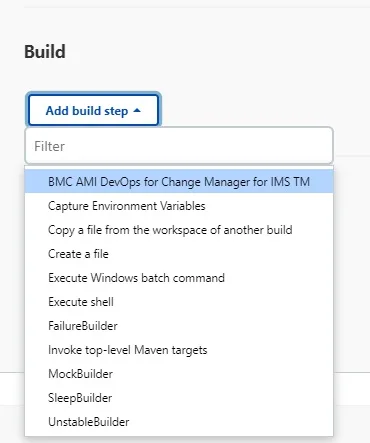
Mainframes and modern DevOps workflows often operate in isolated silos, but the BMC AMI DevOps for Change Manager for IMS TM plugin bridges this gap by allowing developers to manipulate IMS resources online directly through Jenkins. This integration streamlines mainframe operations, enabling teams to dynamically activate changes to IMS objects without leaving their continuous integration and continuous deployment (CI/CD) pipelines. The plugin functions as a dedicated Jenkins build step, requiring Jenkins version 5.28, BMC AMI Change Manager for IMS TM version 3.0, and a configured z/OSMF environment.
By leveraging the z/OSMF REST API, the plugin submits specific jobs to run on the z/OS system. It provides three core capabilities for managing mainframe resources. First, it allows users to create and edit DELTA Lists. Second, it can check a DELTA List against the IMS control region to verify inserted or changed elements without actually implementing them. Finally, executing a DELTA List applies the changes directly to the IMS control region while logging all modifications.
Core Jobs and Security Configurations
The plugin relies on two primary jobs submitted via the REST API. The first is the DLPBTSCT utility, which is used to check or execute a DELTA List in batch mode, notably without requiring the BMCXLINK task. The second is DLPYLIST, a sample user exit designed to create DELTA List records in batch using control cards. When generating the JCL, the system uses placeholders marked with ${} rather than explicit keyword values. Jenkins resolves these placeholders internally during the build process, meaning manual modification of the JCL is generally not recommended.
Because the integration utilizes the Script Security Plugin, administrators must manually approve the scripts to prevent execution failures. If a script lacks approval, Jenkins will throw an UnapprovedUsageException error. To resolve this, an administrator must navigate to Manage Jenkins, access the In-process Script Approval section, and authorize the required scripts.
How to Authenticate the SSL Certificate
Secure communication between Jenkins and the mainframe requires proper SSL certificate authentication. You must distribute the z/OS certificate to the appropriate workstation and import it into the Java KeyStore.
- Distribute the z/OS certificate to the appropriate workstation, and import it into the Java KeyStore using the keytool utility.
- Issue the following command from your command line interface:
keytool -import -alias <alias_name> -keystore <keystore_name> -file <file_name>When executing this command, replace the parameters with your specific environment details. The alias_name represents the entry to process, while the keystore_name points to the location of your cacerts file (typically found in jre/lib/security/cacerts). The file_name is your specific .cer file. During the import process, the system will prompt you for a password; the default Java KeyStore password is changeit. Once completed, you must restart your Java Virtual Machine or computer to apply the changes.
Troubleshooting and Diagnostic Logs
If the plugin fails to execute properly, Jenkins provides several diagnostic paths to identify the root cause. The contents of the Change Manager for IMS TM job spool files are automatically saved in the Jenkins job workspace under the respective build number folder.
To gather required information for diagnosing deeper problems, follow these steps:
- Identify the exact plugin version by navigating to Manage Jenkins, selecting Manage Plugins, and checking the Installed tab.
- Locate the Jenkins Job logs by navigating to
C:\Users\user_name\AppData\Local\Jenkins.jenkins\jobs, selecting your specific job, opening the builds directory, and reviewing the log file for the relevant build number. - Review the overarching System log by navigating to Manage Jenkins and selecting System Log.
- Inspect the
config.xmlfile located in your specific job's directory within the Jenkins AppData folder.
The Strategic Shift in Mainframe CI/CD
The introduction of the BMC AMI DevOps for Change Manager for IMS TM plugin represents a critical shift in how enterprise organizations handle legacy infrastructure. Historically, updating IMS resources required specialized mainframe administrators working outside the standard agile development cycle, creating significant deployment bottlenecks. By mapping complex z/OSMF REST API calls directly into a standard Jenkins build step, BMC is effectively consumerizing mainframe operations for modern DevOps engineers.
This integration significantly reduces the risk of human error during manual DELTA List executions. Because the plugin allows teams to run a "Check" function against the IMS control region before committing changes, developers can validate their configurations in a safe, automated pipeline stage. This capability transforms mainframe updates from high-risk, scheduled maintenance events into routine, automated CI/CD tasks, ultimately accelerating the delivery of critical enterprise applications.