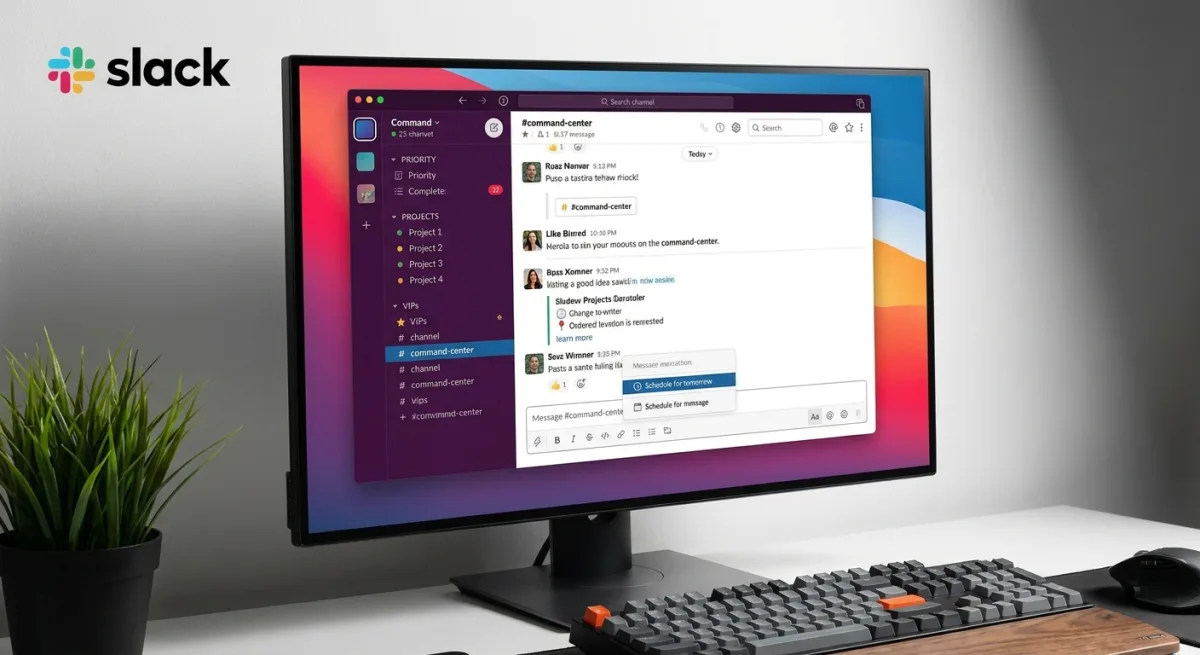
Mastering Slack productivity hacks is essential for anyone struggling with notification fatigue and endless message scrolling. For remote workers and busy teams, optimizing this ubiquitous communication platform enables you to regain deep focus and save hours of lost time. While the app is a staple for business messaging, its default settings often lead to overwhelming alerts and cluttered sidebars.
By leveraging built-in tools like custom schedules, search modifiers, and automated meeting summaries, you can transform the platform from a constant distraction into a streamlined command center. Below is a comprehensive guide to the top features you should configure immediately to work more efficiently.
Essential Slack Workflow Adjustments
- Organize your sidebar by creating custom sections.
This ensures related conversations are grouped together, prioritizing essential projects and reducing scrolling fatigue. On the desktop app, click the three dots next to Channels or Direct messages, navigate to Create > Create section, and name it. You can then star conversations and move them into these sections. Free plan users can achieve a similar result using the Filter and sort option via the gear icon. - Execute quick actions by typing a forward slash for shortcuts.
This enables you to run apps or toggle settings instantly without leaving your keyboard. Simply type a forward slash into any message field to browse available commands, such as /drive to create a Google document or /dnd to toggle Do Not Disturb. You can explore a list of built-in Slack commands for more options. - Customize your notification schedule to match your working hours.
This prevents your device from alerting you during off-hours, protecting your personal time. Navigate to your profile photo, select Preferences > Notifications, and scroll to Notification schedule. Here, you can set specific timeframes for alerts. You can also use slash commands like /dnd to pause them manually. - Set frequent contacts as VIPs to prioritize their messages.
This ensures critical updates from key team members break through even when Do Not Disturb is active. Go to Preferences > VIP and search for the person or app. Under Notifications, toggle on Always allow notifications from VIPs (available on paid plans). - Schedule messages to be sent at a later time or date.
This allows you to draft thoughts when they are top of mind while respecting colleagues' working hours across different time zones. After drafting a message, click the down arrow icon next to the send button and select Custom time > Schedule Message. - Flag important messages for follow-up using the reminder feature.
This ensures you never forget to reply to a crucial request after initially reading it. Click the three dots next to any message, select Remind me, and choose a timeframe. The message will later appear in the Later section of your taskbar. - Locate specific conversations quickly using search modifiers.
This enables you to cut through the noise of highly active channels by filtering results precisely. Use quotation marks for exact phrases, or type in: to search a specific channel. You can also use before:, after:, or on: to filter by date. Mastering Slack's search modifiers saves significant time. - Add custom emojis to personalize your workspace communication.
This fosters team culture and provides quick, visual ways to acknowledge messages without typing a reply. Click the emoji icon, select Add Emoji, upload an image, and name it. This feature is available unless restricted by your workspace admin. - Collaborate on static documents using Slack Canvas.
This provides a dedicated, shareable space for meeting notes and agendas that will not get lost in the regular chat feed. Open any channel or DM and click Add canvas to start a blank document or use a pre-built template. - Delegate huddle notetaking to Slack's built-in AI.
This automatically summarizes takeaways and action items, freeing your team from manual minute-taking during voice calls. In a huddle, click AI notes: Off, then select Start AI notes & transcription > Start notes. You can also set this to start automatically via channel settings (available on paid plans).
The Shift Toward Asynchronous Workspaces
The introduction of features like Canvas and AI-generated huddle notes highlights a significant pivot in how enterprise communication platforms operate. Slack is no longer just a synchronous chat application; it is actively evolving into an asynchronous workspace designed to reduce the friction of real-time demands. By automating the administrative burden of meetings and providing static spaces for documentation, the platform is directly addressing the burnout associated with constant connectivity.
For teams utilizing paid plans, the integration of AI notetaking is particularly impactful. It shifts the focus from merely capturing information to actively participating in the discussion. As remote and hybrid work models continue to mature, mastering these advanced organizational tools will be the dividing line between teams that are constantly overwhelmed by noise and those that maintain high levels of focused productivity.