Millions of users carry a Samsung Galaxy device every day, yet most barely scratch the surface of what their premium smartphone can actually do. Beyond the standard Android experience, Samsung layers its One UI with hidden diagnostic tools, AI-driven customization, and advanced multitasking capabilities that remain untouched by the average consumer.
If you want to stop underutilizing your device and unlock its full potential, you need to dig into the settings. Here are the essential configurations to elevate your daily experience.
- Ensure your Samsung Galaxy device is fully charged and updated to the latest One UI version. This ensures all settings menus and AI features match the current system architecture.
- Automate tasks using Modes and Routines by navigating to Settings > Modes and Routines. This enables your phone to automatically trigger actions like Do Not Disturb when you arrive at the office or connect to specific Wi-Fi networks.
- Pin favorite contacts to the Edge Panel via Settings > Display > Edge Panels, then select the People panel. This ensures instant access to your most important contacts with a simple swipe, bypassing the standard phone app entirely.
- Generate an ambient photo wallpaper by tapping Settings > Wallpaper and style > Change wallpapers > Create with AI > Weather. This enables your lock screen to dynamically adjust its appearance, adding visual effects like raindrops based on real-time weather conditions.
- Boost video brightness for streaming apps under Settings > Advanced features > Video brightness, then select Bright. This ensures a more vibrant viewing experience for media content across your selected streaming platforms.
- Customize notification light effects by opening Settings > Notifications > Notification pop-up style > Add lighting effect. This enables visual, color-coded alerts based on specific keywords or contacts, allowing you to identify incoming messages silently.
- Reassign the side button double-tap and long-press actions in Settings > Advanced features > Side button. This ensures quick access to the camera, the flashlight, or digital assistants like Bixby or Gemini without navigating the home screen.
- Activate one-handed mode by swiping down at the bottom of the screen after enabling it in Settings > Advanced features > One-handed mode. This enables a smaller, easily reachable interface when you are multitasking in the physical world and only have one hand free.
- Launch two apps simultaneously by swiping up to the recent apps carousel, tapping an app icon, and selecting Open in split screen view. This ensures seamless multitasking, allowing you to watch videos on the top half of the screen while reading messages on the bottom.
- Adjust the screen resolution for sharper text or better battery life via Settings > Display > Screen resolution. This enables you to balance visual fidelity against power consumption, extending battery life when high resolution is unnecessary.
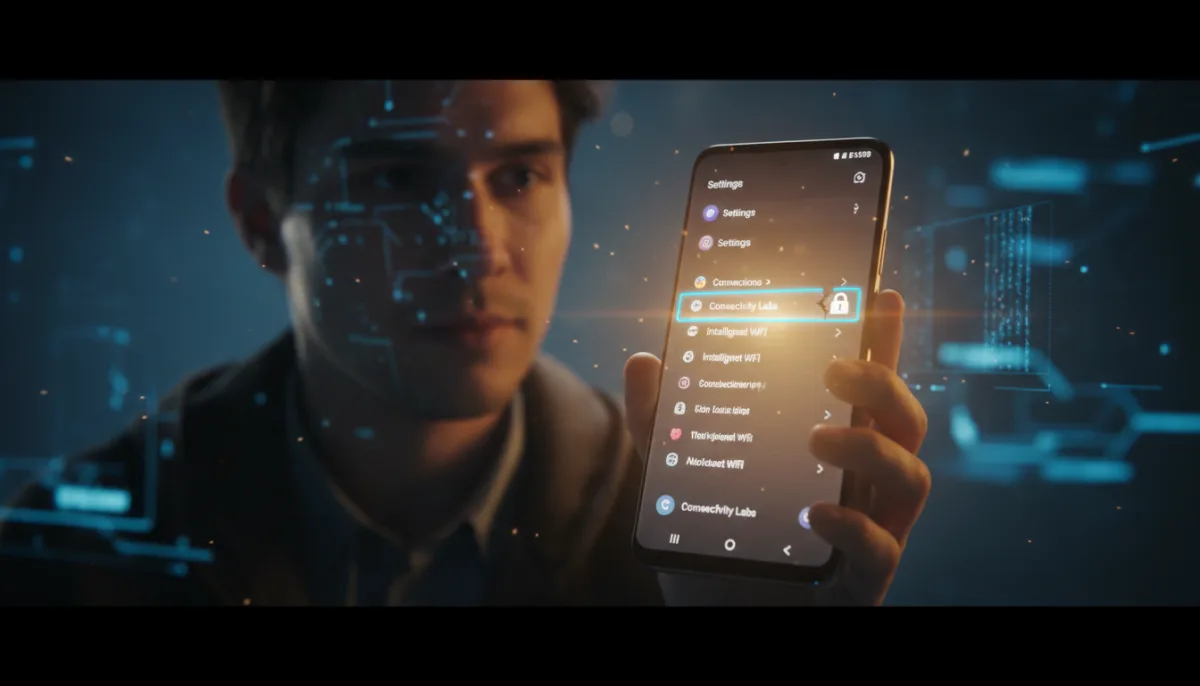
- Unlock the hidden Connectivity Labs by going to Settings > Connections > Wi-Fi > Intelligent Wi-Fi, tapping the three dots, and tapping Intelligent Wi-Fi seven times. This enables advanced diagnostics to measure home Wi-Fi signal strength and troubleshoot network dead zones directly from your device.
The Hidden Cost of Feature Bloat
Samsung’s strategy of burying enthusiast-grade tools deep within the settings menu reveals a delicate balancing act between accessibility and power. By hiding advanced diagnostics like Connectivity Labs behind a seven-tap developer lock, the company keeps the default interface clean for casual users while still catering to the Android power user. This approach stands in stark contrast to competitors like Apple, which typically restricts native network troubleshooting entirely to maintain a walled-garden simplicity.
However, this design philosophy carries a tangible risk of feature fatigue. When a user pays premium prices for a flagship device, leaving powerful automation tools and AI-driven customizations undiscovered means they are fundamentally underutilizing their investment. As smartphone hardware upgrades become increasingly iterative, the true battleground for user retention will shift toward surfacing these hidden software capabilities organically, rather than relying on users to hunt them down.