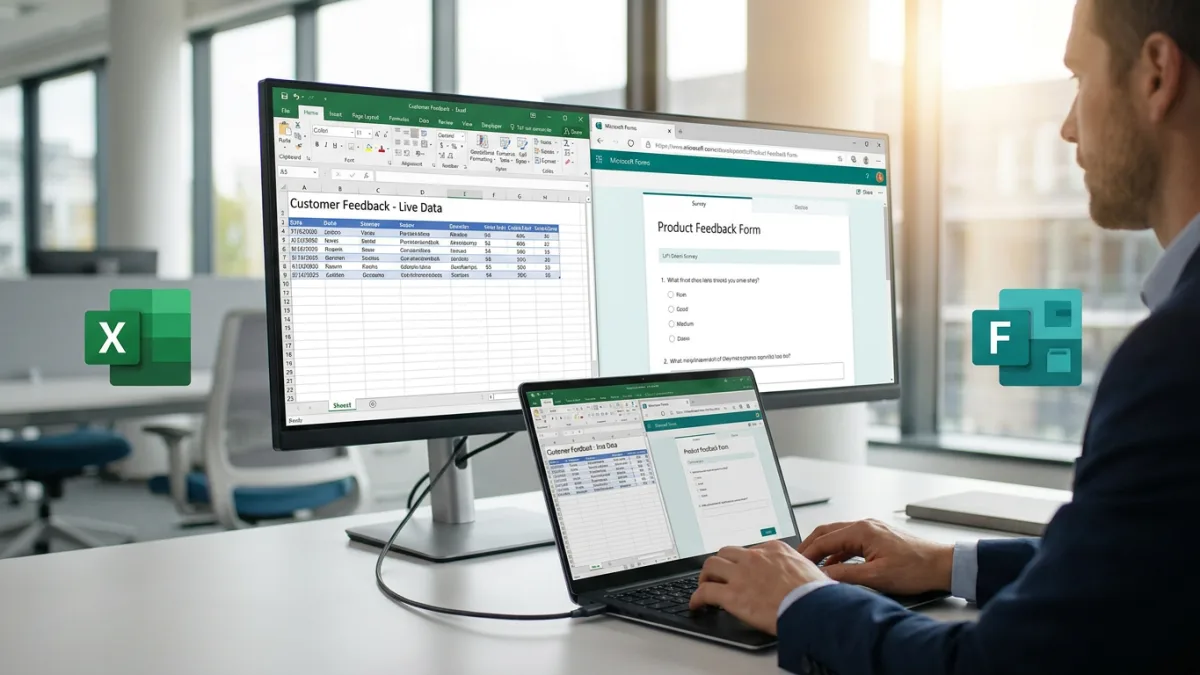
Writing for MakeUseOf, contributor Ada argues that Microsoft Forms and Excel integration makes Microsoft's survey tool a more practical choice than Google Forms for people who keep their reports and records in Microsoft's spreadsheet software. After years of relying on Google Forms for quick surveys, simple polls, and customer feedback, she realized she was constantly exporting her Google Sheets files into Excel anyway.
Eliminating the need to collect responses in one productivity suite only to transfer the data to another ultimately prompted her to reconsider her setup.
A familiar spreadsheet workflow built directly for Excel
Moving away from Google Forms can be tough because of how straightforward it is. Users can open the builder in a browser or via Google Drive, add questions, share a link that works in any browser, and link the incoming answers to a Google Sheets file for tracking.
According to Ada, Microsoft Forms is neither clunky nor complicated, particularly when Excel is already at the center of your daily work. Instead of creating a standalone form and linking it to a spreadsheet later, users can open an Excel workbook saved in OneDrive for work or school and select Insert > Forms > New Form. That action opens the form builder in a web browser and links the new form directly to that workbook.
Users running Excel Version 2410 (Build 16.0.18227.20000) or newer can also open a live-connected response workbook right inside the Excel desktop application. For anyone accustomed to Google Forms, the Microsoft Forms interface should feel familiar thanks to a similar layout of menus and options. Incoming submissions populate rows in an Excel table with each question assigned to its own column, mirroring how Google Forms feeds a linked Google Sheets file.
How live workbook connections and permissions work
Not every workflow between Microsoft Forms and Excel acts the same way, Ada cautions. To maintain a live workbook connection where new submissions appear automatically, the form must be created through specific Microsoft 365 entry points:
- OneDrive for work or school
- Excel for the web
- SharePoint
- Teams and certain other Microsoft 365 entry points
Microsoft also provides a Download a copy option, which generates an offline Excel file that has no ongoing connection to the form.
A live-connected setup works well for managing requests across multiple office locations without letting staff edit a shared spreadsheet directly. By building a form with fields for location, issue type, description, and urgency, employees can submit requests from their phones while responses automatically feed the connected workbook. This gives teams a centralized record without exposing the spreadsheet's underlying formulas, formatting, or sensitive data, and the same method applies to questionnaires and customer inquiries.
Ada notes that this setup is primarily useful if you already rely on Excel; if you just collect answers without moving them elsewhere for analysis, there is little reason to leave Google Forms. However, for those already using Excel, OneDrive, SharePoint, and Outlook, Microsoft Forms slots into the workflow without needing a separate data pipeline.
Advanced analysis, Power Automate, and pre-filled links
Storing form responses directly in Excel opens up broader options for document generation, data analysis, and automation. For example, a business gathering customer details through a form before drafting proposals can feed that Excel data directly into a Word mail merge to automatically populate document templates with customer names, addresses, and other details. Doing the same in Google's ecosystem generally requires a third-party add-on or an Apps Script workflow that may require writing code.
For deeper data analysis, while Google Sheets has plenty of tools for filtering, summarizing, and querying, Excel features functions like PIVOTBY and GROUPBY that make it easier to group, aggregate, and analyze large datasets directly with formulas. Users can also pair Microsoft Forms with Power Automate so that a new submission triggers an email notification, starts an approval process, or updates workflows across Excel, Outlook, and other supported systems.
Additionally, like other form builders, Microsoft Forms supports pre-filled links. Users can share a URL that opens a form with fields such as a department, address, or reference code already filled in, saving respondents from re-entering details a company already knows, like a customer's business name or an employee's department.
Account limitations and permission pitfalls
Despite these advantages, Ada points out that pairing Microsoft Forms with Excel is not flawless. The tightest direct, automatic integration is reserved for Microsoft 365 work and school accounts. Personal Microsoft account holders can still build forms and export answers to Excel, but several live-connected workbook features rely on organizational storage like SharePoint or OneDrive for work or school.
Access permissions require careful setup as well. A form can be open to respondents while its linked workbook stays restricted to specific staff members. While that separation is often useful, improper OneDrive or SharePoint permission settings can leave a colleague able to view the form but locked out of the underlying data, or cause an automated workflow to fail if its owner loses the necessary access.
Choosing between Google Forms and Microsoft Forms
According to MakeUseOf's Ada, the choice between the two tools should depend on what happens after a form is submitted rather than just how fast you can build it. Google Forms remains a sensible pick for quick surveys, simple sharing, and teams working inside Google Workspace.
Conversely, if incoming responses need to turn into reports, documents, automated workflows, or part of a broader Excel-based process, Microsoft Forms can make that next stage much easier for users who already store, analyze, and manage almost all of their spreadsheet data in Excel.
This article was written by AI from reporting by makeuseof.com.