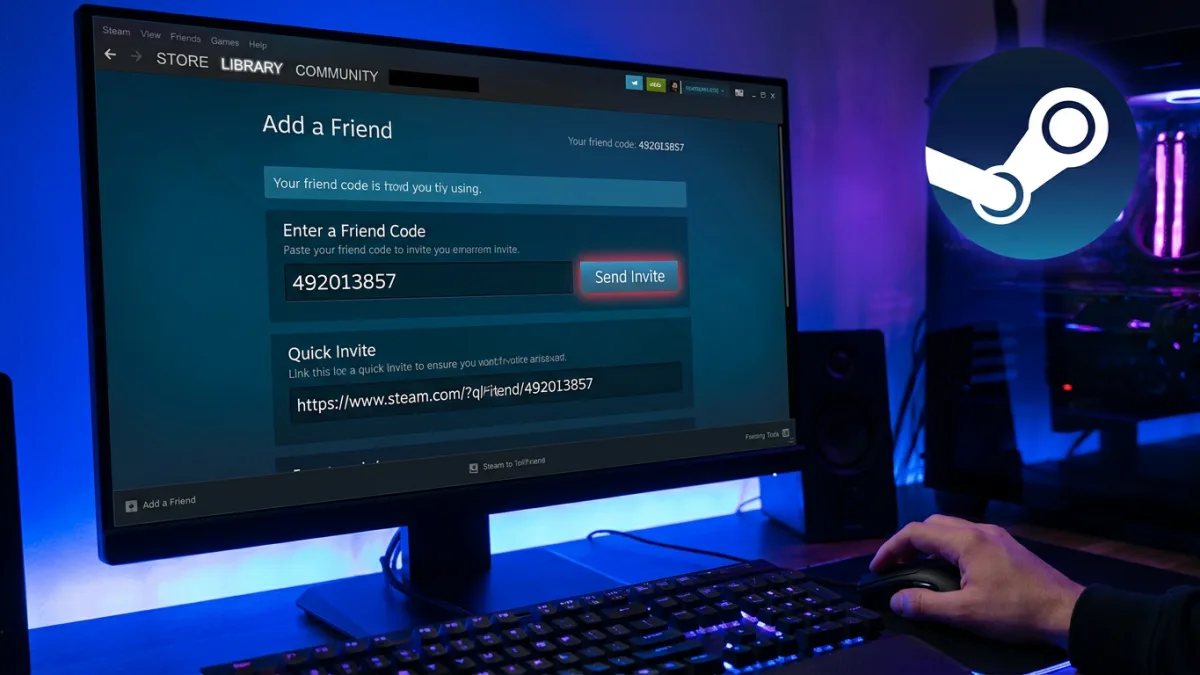
Locating a specific player among the 43.5 million concurrent users Steam recorded in October 2026 can be difficult when a basic name query returns pages of identical aliases, default avatars, and blank bios. Instead of sending requests to strangers on Valve's platform, players can search Steam users accurately using friend codes, invite links, custom URLs, and match history tools, according to MakeUseOf writer Brad.
Finding Someone Already on Your Friends List
If you know a player's username and have teamed up with them previously, they may already be in your contacts. You can locate an existing friend on Steam through your profile menu:
- Open the Steam application and make sure you are logged in to your account.
- Hover your cursor over your profile name and click Friends from the drop-down menu.
- Browse your Friends list and click the specific user's name to open their profile.You can use the search bar to filter the list if you have a large number of friends.
Players can also click the Friends & Chat button in the bottom-right corner to view people they have messaged, or open the list from the Friends menu at the top of the Steam window. If you prefer to play without contacts seeing when you are active, Steam also lets you hide your activity.
Adding a Friend by Code or Quick Invite Link
When you can contact the person outside of Steam, MakeUseOf recommends asking for their friend code rather than searching by name. Every Steam account has a unique numeric friend code that points directly to that profile, bypassing duplicate display names.
- Open the Steam app and verify that you are signed in.
- Hover over your profile name, select Friends, and click Add a Friend in the left-hand panel.
- Click Copy next to your own friend code at the top of the page if you want to send it to someone else.
- Paste the other person's code into the Enter a Friend Code field to add them.
- Confirm that the profile preview shows the right player, then click Send Invite.
That same page also offers a Quick Invite link that you can copy and share; once your friend opens the link and accepts, your accounts are connected. Each link works only a single time and expires after 30 days, so you should generate a fresh link if an older one was sent a while ago.
Adding friends normally requires an unrestricted Steam account that has spent money on the store. However, Quick Invite links work as a workaround even between limited accounts.
Searching by Profile Name or Custom URL
If you do not have a friend code, you can look up a player by their display name:
- Open the Steam app and confirm you are logged in.
- Hover over your profile name, click Friends, and select Add a Friend.
- Type the player's name under the Or try searching for your friend heading and press Enter.
- Locate the person in the search results and click Add as Friend.
Because Steam allows multiple accounts to share the same display name, spotting a familiar profile picture helps narrow down the results, and clicking a name lets you inspect their bio and location. If the person has set up a custom profile URL, such as steamcommunity.com/id/username, you can ask for that address instead to go straight to their exact profile.
Locating Strangers from Recent Matches
When you want to reconnect with someone from a recent multiplayer session, you can check your match history in the Steam desktop client:
- Open the Steam desktop app and make sure you are logged in.
- Hover over your profile name and select Friends.
- Click Recently Played With from the side menu on the Friends page to view users from your latest sessions.
MakeUseOf advises holding off on joining another online match until you have found the player. Playing additional multiplayer games can push their name further down and bury them out of the Recently Played With list.
Privacy Settings, Playtime Tracking, and Library Sharing
Once you connect with other players, several Steam settings control what your friends can see and access across your account:
Hidden Games and Activity
If you choose to hide a specific game in your Steam library, none of your Steam friends will see that you are playing that title when you launch it online. Hiding a title is also one of multiple ways to remove or conceal games from your account view.
Invisible Status vs. Offline Mode
Setting your status to Invisible lets you appear offline to friends while remaining connected to Steam, and the platform continues to count your hours played at all times. By contrast, if you switch your status to Offline, Steam will not track your playtime.
Accessing Another User's Game Library
You cannot view or access other users' game libraries - including those belonging to your Steam friends - without enabling both Family Library Sharing and Steam Guard. When you share games with family members on your specific PC setup and turn on Steam Guard, you can see the titles owned and played by those other Steam accounts on that machine.
Choosing the Right Search Method on Steam
Searching by display name works when a player uses a unique alias, but asking directly for a numeric friend code or a Quick Invite link avoids scrolling through dozens of identical names. For players you just met in a match, checking the Recently Played With tab - or falling back to the in-game overlay if the main list lets you down - and adding them right away is the safest approach, as with over 43 million concurrent users on Steam, you are unlikely to run into the same stranger twice.
This article was written by AI.