Google's latest Android 17 QPR2 Beta 3 update transforms how you interact with your Pixel, introducing deep customization tools that fix long-standing usability issues. If you are tired of stretching your thumb to reach the brightness slider or dealing with notification spam from shopping apps, this update provides immediate, actionable relief.
Designed for Pixel 6a and newer devices, including the recently announced Pixel 11 lineup, this beta release shifts the focus from under-the-hood bug fixes to highly requested user-facing features. By installing this update, you gain granular control over your Quick Settings, advanced Dynamic Color theming, and a robust App Lock system that enhances both privacy and daily convenience.
Prerequisites for the Beta Update
- A compatible Google Pixel device (Pixel 6a or newer).
- An active Google account to enroll in the beta program.
- A stable Wi-Fi connection to download the OTA (Over-The-Air) update.
How to Install Android 17 QPR2 Beta 3
- Navigate to the official Android Beta for Pixel website and log into your Google account. This authenticates your device eligibility and links your hardware to the beta servers.
- Enroll your eligible Pixel smartphone by clicking the opt-in button on the devices list. This triggers the server to push the pre-release software directly to your phone.
- Download the OTA update by going to Settings > System > Software updates on your Pixel. This installs Android 17 QPR2 Beta 3, unlocking the new customization features ahead of the stable December release.
How to Customize the Quick Settings Layout
- Swipe down twice from the top of your screen to fully reveal the Quick Settings panel, then tap the pencil (edit) icon. This opens the standard tile editing interface.
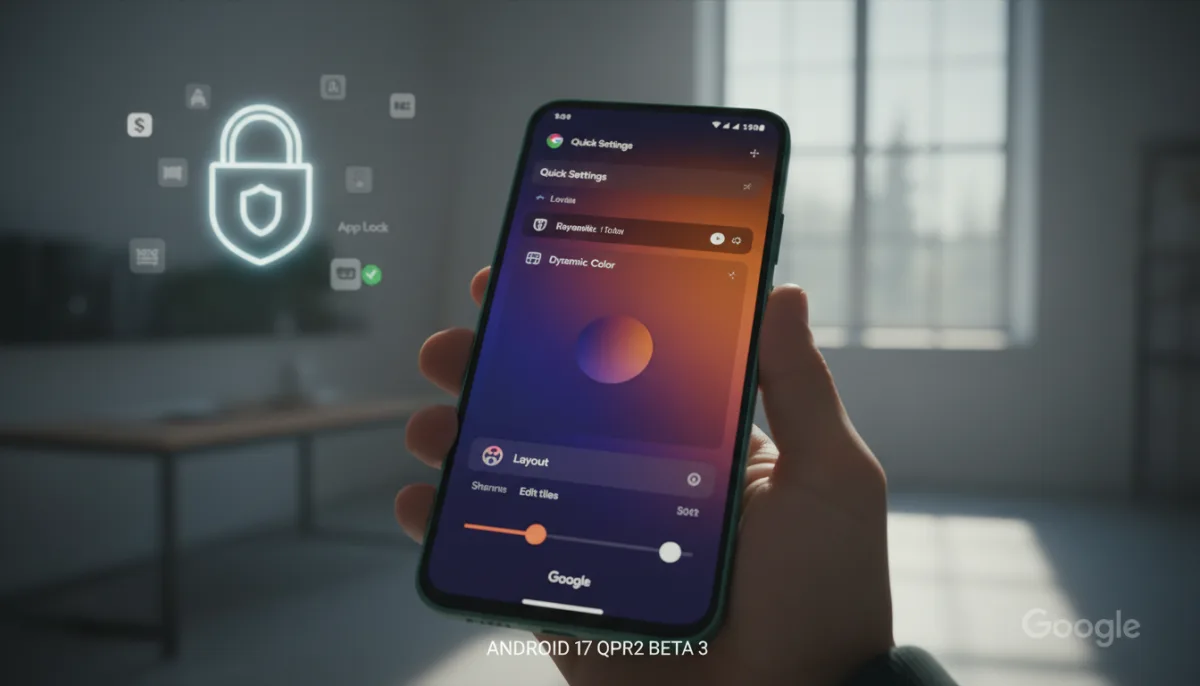
- Tap the new "Layout" button located at the bottom of the screen. This grants you access to the newly introduced "Edit tiles" page where structural elements are unlocked.
- Drag the brightness slider to the bottom of the screen and the media player to the top. This ensures the brightness control is easily reachable with one hand, drastically improving ergonomics on larger devices like the Pixel 11 Pro.
How to Master Advanced Dynamic Color Theming
- Open the Settings app and navigate to the Wallpaper & Style menu, then select the Colors section. This directs you to the system-wide Material You theming engine.
- Tap the pencil icon above your currently selected preset color to choose between Neutral, Soft, Bright, and Bold variations. This allows you to adjust the intensity and saturation of the system-generated accent colors.
- Select the new paint palette icon and drag the slider to create a custom hue. This overrides the wallpaper-based presets, giving customization enthusiasts total control over their system aesthetics.
How to Secure Applications with App Lock
- Press and hold any application icon on your home screen or within the app drawer. This opens the quick actions context menu for that specific application.
- Tap the new "App lock" option, followed by "Add app lock" to confirm the action. This instantly secures the app behind your device's biometric authentication (fingerprint or face unlock) or PIN.
- Verify the lock by observing the app's behavior; widgets are removed and notifications are silenced. This provides a dual benefit: it secures sensitive data from unauthorized access and acts as a powerful notification filter to reduce digital clutter.
The Notification Filter Nobody Is Talking About
While the visual tweaks to the Quick Settings and Dynamic Color engine are welcome aesthetic upgrades, the true standout of Android 17 QPR2 Beta 3 is the App Lock feature. Traditionally, app locking mechanisms are viewed strictly through the lens of security - preventing unauthorized users from accessing banking or messaging apps. However, Google's implementation introduces a brilliant secondary use case: aggressive notification management.
By automatically hiding notification content and removing widgets when an app is locked, App Lock effectively doubles as a targeted "Do Not Disturb" mode for specific applications. For users overwhelmed by promotional spam from shopping apps or endless alerts from social media platforms like X and Reddit, locking these apps silences the noise without requiring complex notification channel configurations. If this feature makes it to the stable December release intact, it will fundamentally change how Pixel users manage their digital wellbeing, offering a one-tap solution to both secure data and reclaim their attention.