When the AWS Systems Manager Patch Manager reports failures across hundreds of managed nodes spanning multiple accounts and regions, operations teams often face a grueling, time-consuming investigation. Engineers are forced to log into each account, correlate events, analyze logs, and determine whether the failures share a common root cause. A single patch cycle failure can easily consume hours of valuable engineering time.
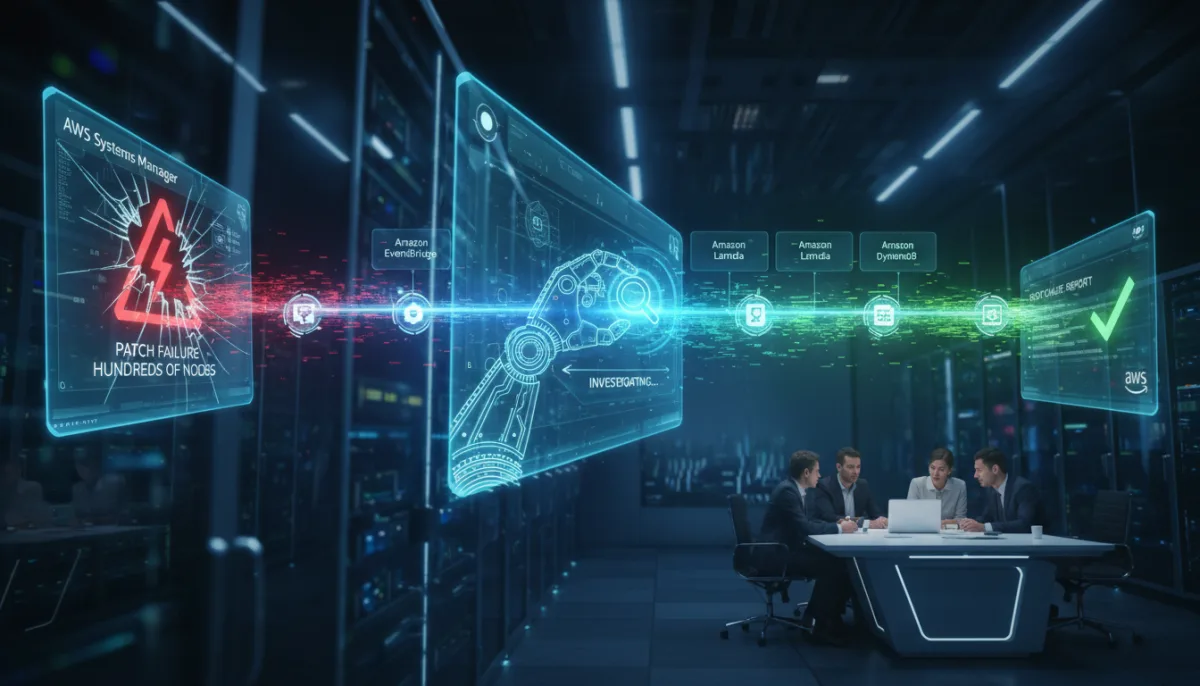
To eliminate this manual toil, AWS has introduced an event-driven solution that automatically triggers root cause analysis (RCA) for patch failures using the AWS DevOps Agent. When a patch operation fails, the system emits a status-change event containing the command ID, instance ID, and error status. Amazon EventBridge captures this event, an AWS Lambda function enriches it with critical metadata, and the AWS DevOps Agent conducts an autonomous investigation to produce a root cause report within minutes.
By deploying this centralized architecture, operations teams can establish a fully automated pipeline that captures patch failure events across multiple accounts and regions. The pipeline enriches each failure with Systems Manager command output, fleet failure rates, and instance metadata before triggering the AWS DevOps Agent to autonomously investigate the root cause without any manual log correlation.
How the Autonomous Investigation Architecture Works
The solution relies on a centralized architecture where workload accounts forward patch failure events to a central primary account containing the Lambda function and the AWS DevOps Agent space. The event flow follows a strict, automated sequence to ensure rapid diagnosis.
- The AWS Systems Manager executes the AWS-RunPatchBaseline document on target managed nodes.
- When a patch operation fails, Systems Manager emits a status-change event directly to Amazon EventBridge.
- An EventBridge rule in the workload account forwards the event to the primary account's event bus, supporting cross-account and cross-region routing.
- An EventBridge rule in the primary account invokes the AWS Lambda function to deduplicate, enrich, and forward the failure data for investigation.
- The Lambda function checks Amazon DynamoDB for duplicate events to prevent repeated investigations. It then assumes a role back into the workload account to enrich the event, retrieves an HMAC signing key from AWS Secrets Manager (encrypted via AWS KMS), and sends an authenticated HTTPS request to the AWS DevOps Agent webhook endpoint.
- The AWS DevOps Agent investigates the failure autonomously and generates a comprehensive root cause report.
Prerequisites for Deployment
Before building this event-driven pipeline, ensure your AWS environment meets the necessary foundational requirements. You will need an AWS account with an active AWS DevOps Agent space, and your workload accounts must be registered as secondary sources within that Agent Space.
- One or more workload accounts containing Systems Manager managed nodes.
- AWS Organizations configured (highly recommended for multi-account deployments), requiring your Organization ID or a specific list of workload account IDs.
- Appropriate IAM permissions to create AWS CloudFormation stacks and StackSets across your environment.
Step 1: Create the AWS DevOps Agent Space and Webhook
The first phase involves setting up the centralized workspace where the autonomous investigations will occur. This space requires specific IAM roles to discover and access AWS resources during its analysis.
- Open the AWS DevOps Agent console in your primary account and choose Create Agent Space.
- In the Agent Space Name field, enter a descriptive name for your environment (for example, patch-rca-production).
- Under the resource access section, select Auto-create a new AWS DevOps Agent role to grant the agent the necessary permissions to scan your infrastructure.
- Enable the Web App by selecting Auto-create a new AWS DevOps Agent role, which allows personnel to interact with the agent and review recommendations.
- Choose Create to finalize the workspace setup.
Next, register each workload account where you actively patch instances. Navigate to the Capabilities tab, scroll to the Cloud section, and under Secondary sources, choose Add. Select AWS, review the permissions, provide the AWS Account ID of the secondary account, and choose Add.
Finally, configure the generic webhook to receive enriched events from your Lambda function. In the Capabilities tab, scroll to the Webhooks section and select Add webhook. Verify the data schema, generate the URL and secret key, and download the CSV file. You must save the webhook URL and HMAC secret securely, as they are required for the next deployment step.
Step 2: Deploy the Primary Account Stack
With the Agent Space configured, you must deploy the primary infrastructure stack. This stack provisions the Lambda function, EventBridge rule, DynamoDB deduplication table, Secrets Manager secret, and KMS encryption key.
- Download the CloudFormation templates from the official GitHub repository.
- Open the AWS CloudFormation console in your primary account and choose Create stack, followed by With new resources (standard).
- Upload the primary-account.yaml template file and choose Next.
- Enter a Stack name (for example, devops-agent-patch-primary).
- In the parameters section, input the webhook URL and HMAC secret you generated in Step 1.
- If using AWS Organizations, enter your Organization ID (for example, o-abc123) to allow workload accounts to forward events. If not, leave it blank and provide explicit account IDs in the SecondaryAccountIds parameter.
- Acknowledge the IAM capabilities and choose Submit.
The deployment relies on several key parameters to control the investigation flow. You can customize these values based on your tagging strategy and operational limits.
| Parameter | Description | Default Value |
|---|---|---|
| WebhookUrl | AWS DevOps Agent generic webhook endpoint URL | None |
| WebhookSecret | HMAC secret for webhook authentication | None |
| OrganizationId | AWS Organizations ID to allow event forwarding | None |
| SecondaryAccountIds | Comma-separated workload account IDs (if not using Organizations) | None |
| InvestigateTagKey | Tag key used to identify instances for investigation | auto_investigate |
| InvestigateTagValue | Tag value that enables the automated investigation | true |
| DeduplicationWindowMinutes | Time window to deduplicate failures from the exact same command | 10 |
| MaxInvestigationsPerCommand | Maximum number of investigations allowed per command ID | 5 |
Step 3: Deploy Workload Account Stacks via StackSets
The final deployment phase involves rolling out the secondary-account.yaml template to your workload accounts using AWS CloudFormation StackSets. This creates the IAM role required for cross-account event enrichment and the EventBridge forwarding rule that routes patch failures back to your primary account.
The stack creates the DevOpsAgentPatchEnrichmentRole, which grants the primary account's Lambda function read-only access to EC2 instance metadata, SSM command output, and CloudWatch metrics. The trust policy strictly limits access to the Lambda role in your primary account.
- Open the AWS CloudFormation console in your management or delegated administrator account and navigate to StackSets.
- Choose Create StackSet and select Service-managed permissions.
- Upload the secondary-account.yaml template file and proceed to the next step.
- Enter a StackSet name (for example, devops-agent-patch-workload).
- Input your primary account ID and primary region (for example, us-east-1) in the parameters section.
- Under Deployment targets, choose to deploy to your entire organization or specify specific Organizational Unit (OU) IDs to limit the scope.
- Select the region you specified as the PrimaryRegion, acknowledge the IAM capabilities, and choose Submit.
Because Amazon EventBridge events are Regional, you must deploy the workload template in every Region where you run patched instances. To add additional regions later, edit the StackSet details, set the CreateIAMRoles parameter to false (since the global IAM role already exists), and add the new regions under the deployment options.
How the Enrichment and Filtering Process Works
Before triggering an investigation, the Lambda function performs critical filtering and enrichment to ensure the AWS DevOps Agent receives high-quality, actionable data without being overwhelmed by transient errors.
- Tag Check: The function verifies that only instances matching the configured tag key and value (e.g., auto_investigate=true) proceed to investigation.
- Deduplication: Amazon DynamoDB prevents duplicate investigations within a configurable 10-minute window, ensuring the agent isn't flooded by identical failures.
- Per-Command Throttle: The system limits investigations per command ID (defaulting to 5) to prevent runaway costs during massive fleet-wide failures.
- Transient Failure Filtering: Known benign patterns, such as standard reboot exits or temporary lock contention, are automatically skipped.
Once filtered, the event is enriched with the fleet failure rate, instance metadata (OS version, platform, IAM role), the specific SSM command error message, and a priority classification derived from instance tags.
Validating the Automated Investigation Pipeline
To confirm the solution is functioning correctly, you can trigger a manual patch baseline execution on tagged instances and monitor the AWS DevOps Agent console for the resulting investigation.
- Open the AWS Systems Manager console in a workload account and navigate to Run Command.
- Select the AWS-RunPatchBaseline document.
- Under Target selection, choose Specify instance tags and enter your configured tag key and value (e.g., auto_investigate and true).
- Set the Operation parameter to Install and choose Run.
If any tagged instance fails, a new investigation will appear in the AWS DevOps Agent console within 60 seconds. The agent intelligently links related investigations when multiple instances fail in the same time window, providing a consolidated view of fleet-wide issues. Rather than assuming all failures share the same root cause, the agent examines each failure independently, producing distinct findings for different causal chains - such as root volume exhaustion versus DNS resolution errors.
Production Considerations and Telemetry
When moving this solution into a production environment, several architectural and operational factors must be addressed to ensure security, cost-efficiency, and diagnostic accuracy.
- Cost Management: The solution utilizes serverless, pay-per-use components. Steady-state costs are primarily driven by the AWS KMS key and Secrets Manager secret. The per-command throttle is critical for preventing runaway costs during mass failure events.
- Enhanced Telemetry: Investigation quality drastically improves when instances ship OS logs to Amazon CloudWatch Logs and patch operations are configured with Amazon S3 output logging. The agent reads the full, untruncated command output directly from S3.
- Private VPC Environments: For instances lacking direct internet access, you must enable Amazon VPC Flow Logs and CloudTrail S3 data events. These are required for the agent to diagnose network connectivity failures, such as misconfigured VPC endpoints.
- Continuous Learning: Each triggered investigation contributes to the Agent Space knowledge base. Over time, the AWS DevOps Agent automatically extracts recurring root cause patterns, prioritizing validation over exploratory diagnosis to reduce the mean time to resolution.
To avoid incurring future charges when testing is complete, you must delete the resources. Begin by deleting the stacks from the StackSet in the workload accounts, followed by deleting the primary stack in the AWS CloudFormation console. Finally, delete the Agent Space from the AWS DevOps Agent console.
The Shift Toward Autonomous Cloud Operations
The integration of the AWS DevOps Agent into routine Systems Manager workflows represents a fundamental shift in how enterprise cloud operations function. For years, the industry standard has been reactive alerting: a patch fails, an alarm triggers, and a human engineer begins the tedious process of pulling logs, checking metrics, and querying databases to find the needle in the haystack. By shifting the initial triage and correlation burden to an autonomous agent, AWS is effectively turning Tier 1 support into a machine-driven process.
What makes this specific architecture powerful is its event-driven nature combined with strict deduplication. In a fleet of 10,000 instances, a bad patch could trigger thousands of simultaneous failures. Without the DynamoDB deduplication layer and the per-command throttling built into the Lambda function, an automated RCA tool could easily trigger a massive spike in API calls, leading to throttling and unexpected serverless costs. By enriching the data with fleet-wide context before invoking the agent, the system ensures the AI has the exact scope of the blast radius before it begins reasoning.
Furthermore, the agent's ability to distinguish between independent failure signatures within the same patch deployment - identifying that one node failed due to disk exhaustion while another failed due to a DNS misconfiguration - proves that AI-driven operations are moving beyond generic summaries. As organizations continue to scale their infrastructure, deploying autonomous RCA pipelines will transition from being a cutting-edge experiment to a baseline requirement for maintaining operational SLAs.
This article was written by AI from reporting by aws.amazon.com.