Modern smartphones are packed with so many capabilities that genuinely life-changing utilities often get buried, leaving many hidden Pixel features undiscovered in sub-menus. For Google Pixel users, the relentless rollout of flashy new software has overshadowed several foundational tools that can drastically speed up daily navigation.
This guide is for Pixel owners - particularly those upgrading to devices like the Pixel 10 Pro - who want to maximize their phone's potential. By uncovering these buried settings, you can eliminate daily frustrations like lost notifications, tedious text editing, and slow app navigation.
Google has gone into overdrive recently, packing its ecosystem with AI-driven utilities such as Magic Cue, the revamped Now Playing, and Magic Editor. While these additions are impressive, they create a cluttered toolbox where older, highly practical features are easily forgotten. Here are the five tools you should activate immediately.
Essential Pixel Utilities You Are Probably Missing
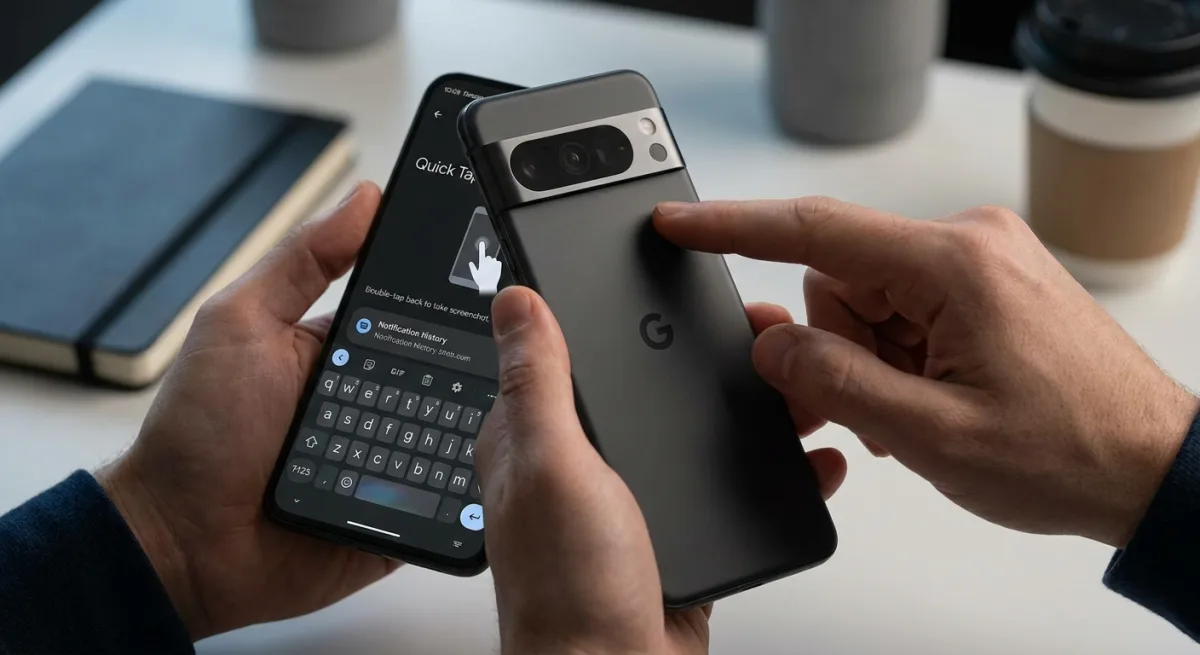
- Enable Quick Tap for instant actions: Navigate to Settings > System > Gestures, then select Quick Tap to start actions. This enables you to double-tap the back panel of your phone (beneath the camera bar) to instantly take screenshots, pause media, or launch a specific app.
- Create icon shortcuts for specific app sections: Open your App drawer, long-press an app icon (such as YouTube or Discord), and tap the specific shortcut to place it on your home screen. This allows you to bypass the main app interface and jump directly into your subscriptions or specific chat channels, saving valuable time.
- Move the text cursor using the spacebar: Drag your finger horizontally across the spacebar on your Gboard keyboard. This ensures precise cursor placement for correcting minor typing mistakes, eliminating the frustration of trying to tap the exact pixel on your screen.
- Activate Notification History to recover lost alerts: Go to Settings > Notifications > Notification history and toggle the feature on. This ensures you have a complete log of your alerts, saving you from missing important information when you accidentally swipe a notification away.
- Download the Magnifier app for visual assistance: Install the Magnifier app from the Play Store and point your camera at physical objects. This provides an accessible, easy-to-see interface with custom filters designed specifically to help users with impaired vision read small text.
Google Pixel 10 Pro Specifications
| Specification | Detail |
|---|---|
| SoC | Google Tensor G5 |
| RAM | 16GB |
| Storage | 128 GB / 256 GB / 512 GB / 1 TB (Zoned UFS) |
| Battery | 4870mAh |
| Operating System | Android 16 |
| Front camera | 42 MP Dual PD selfie camera |
The latest Pro model integrates a faster, more efficient Tensor G5 chip and an upgraded image signal processor (ISP). These hardware upgrades cement its position as a top-tier Android device for 2026.
The Usability Cost of AI Feature Bloat
Google’s relentless push to market the Pixel 10 Pro through generative AI tools like Magic Editor is inadvertently burying the foundational UX improvements that actually define the Android experience. When a device is packed with 16GB of RAM and a Tensor G5 chip, the marketing naturally leans toward heavy computational tasks, leaving quality-of-life features like Quick Tap to fade into obscurity.
The most glaring example of this disconnect is Notification History. The fact that such a critical safety net remains disabled by default in Android 16 highlights a recurring flaw in modern OS design: prioritizing new feature discovery over core usability. If Google wants to maintain its reputation for building the smartest smartphones on the market, it needs to stop hiding its most practical tools behind layers of settings menus.
This article was written by AI from reporting by androidpolice.com.