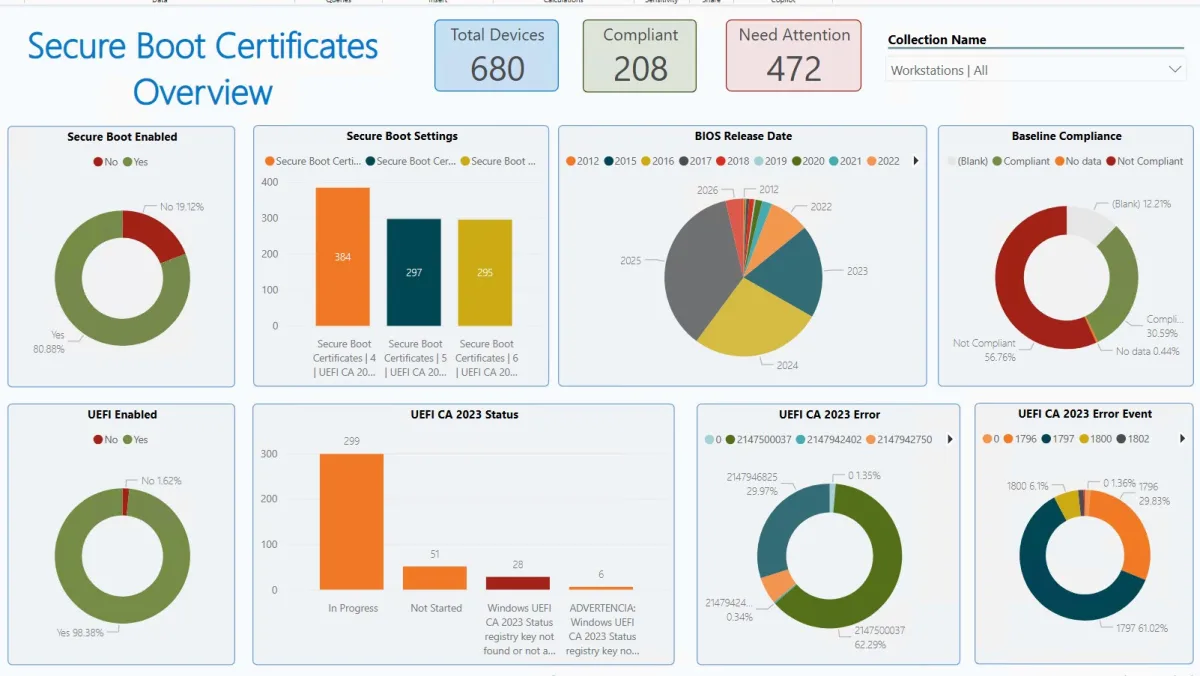
Managing the upcoming 2026 Secure Boot certificate expirations across a large fleet of devices can quickly become an administrative nightmare. To help IT administrators track compliance and identify devices struggling to update, a new Secure Boot Certificates Power BI Dashboard integrates directly with Microsoft Configuration Manager. Whether you are running Configuration Manager in standalone mode or utilizing CoManaged devices, this dashboard provides critical visibility into your infrastructure's Secure Boot status.
Because many inventory components are not available via standard Hardware Inventory by default, using a configuration baseline with compliant and non-compliant statuses is the most effective implementation strategy. This approach allows administrators to gather accurate data without disrupting end-user productivity.
How to Import the Configuration Baseline
Before configuring the dashboard, you must import the necessary baseline data into your environment.
- Extract the files from the SecureBoot Certificate baseline download.
- In the Configuration Manager console, browse to Asset and Compliance / Compliance Settings / Configuration baseline and click on Import Configuration Data.
- Click on Add, and browse to select all cab files previously extracted.
- A warning will display about an unknown publisher; click Ok to proceed.
- Click next to complete the wizard.
Deploying the Baseline for Evaluation
Once the baseline is imported, it must be deployed to start gathering inventory data from your endpoints.
- Deploy the newly created Secure Boot Certificates Configuration baseline. Note that the name must remain exactly the same for the report to work properly.
- Select only the Secure boot certificates baseline and a target collection, then adjust the evaluation schedule to 1 day. This baseline does not require the Remediate option, since it only evaluates for inventory purposes.
- The baseline is pre-configured to be effective on CoManaged devices as well.
- After a day or two, look at the Compliance count within the Configuration Manager console to verify data collection.
Configuring the Power BI Dashboard
With the data successfully collected in Configuration Manager, you can now link it to the visualization tool.
- Open the report using Microsoft Power BI Desktop.
- Provide the SQL server details for the Configuration Manager and the corresponding SQL database.
- A prompt for a Native Database Query will most likely appear.
- To prevent this interruption, turn off Require user approval for new native database queries under Options / Global / Security.
For deeper technical context, administrators should review Microsoft's documentation on Secure Boot DB and DBX variable update events. Additionally, you can consult the official Microsoft TechCommunity post regarding the comprehensive 2026 expiration playbook.
The 2026 Expiration Deadline Demands Proactive Tracking
The impending expiration of Secure Boot certificates in 2026 is not a minor maintenance task; it is a critical security event that could leave unpatched devices unbootable or vulnerable. Relying on default hardware inventory is insufficient, which is why bridging Configuration Manager baselines with Power BI is a strategic necessity.
By visualizing compliance data, IT teams can shift from reactive troubleshooting to proactive remediation. Organizations that fail to implement these tracking dashboards now will likely face significant operational disruptions as the expiration deadline approaches, especially in complex, CoManaged environments where visibility is often fragmented.