According to MakeUseOf writer Ada, the newer Excel GROUPBY and PIVOTBY functions can spill summarized results across a worksheet, prompting talk about whether classic tools are becoming obsolete. While both functions resemble streamlined versions of PivotTables at first glance, Ada finds after using them that they do not actually replace the PivotTable feature.
What GROUPBY and PIVOTBY Do
Similarities That Only Go So Far
Ada notes that GROUPBY and PIVOTBY can feel like PivotTables reduced to their mathematical core, though the two approaches are not identical. GROUPBY is built for single-axis aggregation and uses the following basic syntax:
=GROUPBY(row_fields, values, function, ...) Users specify which row fields create the groups - selecting multiple columns builds hierarchical groupings - alongside the values to summarize and the aggregation method. For example, in a sales dataset where a user wants to view Total Profit and Average Units Sold grouped hierarchically by Region as the primary group and Country as the secondary group, Ada provides this formula:
=GROUPBY(A2:B100, HSTACK(N2:N100, I2:I100), VSTACK(SUM, AVERAGE), 3, 1)In that example, A2:B100 sets the Region and Country hierarchy, while HSTACK(N2:N100, I2:I100) selects the Total Profit and Units Sold value columns. VSTACK(SUM, AVERAGE) applies SUM to Profit and AVERAGE to Units Sold, the argument 3 includes headers and subtotals, and 1 sorts the output in ascending order.
Where GROUPBY aggregates data vertically through row fields, PIVOTBY introduces a col_fields argument so values can be broken down both vertically and horizontally. Users can still manage totals and sorting, filter source records prior to aggregation, and apply the relative_to argument to calculate metrics like percentages of row, column, or grand totals. To analyze Total Profit (using SUM) and Average Units Sold (using AVERAGE) grouped vertically by Region and Country and split horizontally by Sales Channel, Ada shows the following formula:
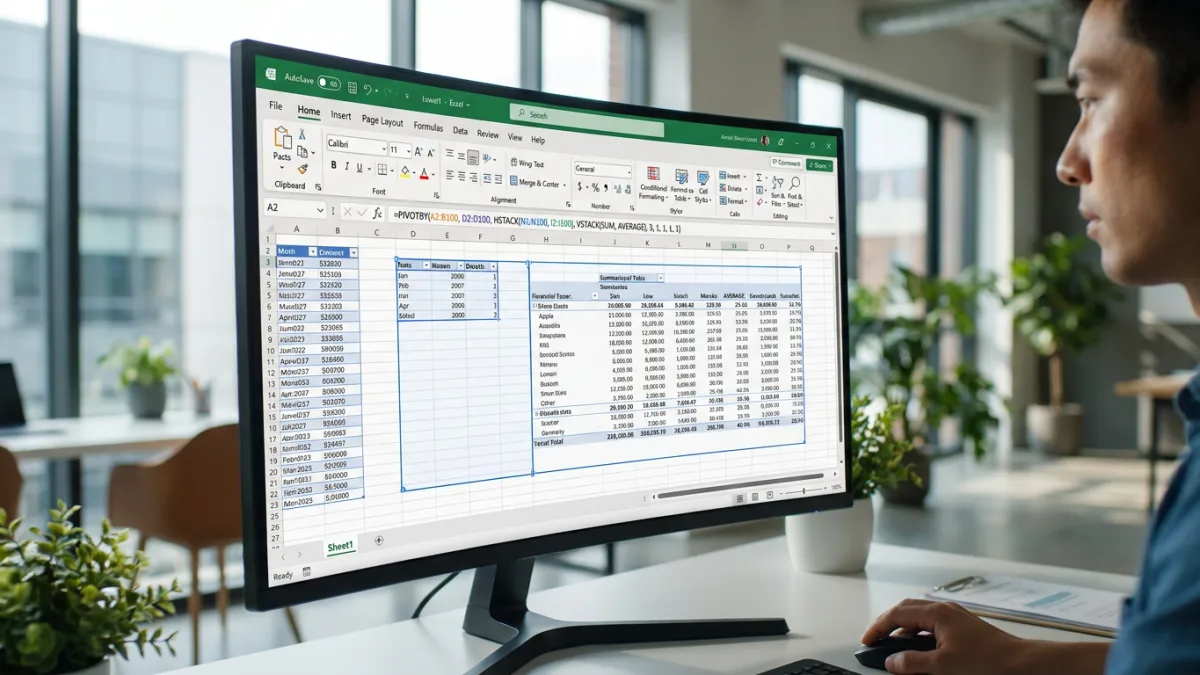
=PIVOTBY(A2:B100, D2:D100, HSTACK(N2:N100, I2:I100), VSTACK(SUM, AVERAGE), 3, 1, 1, 1, 1)Following the row_fields range (A2:B100), the col_fields range (D2:D100) groups columns across the top by Sales Channel. Inside the remaining arguments, 3 includes headers, the first 1 displays row grand totals and subtotals, the second 1 sorts rows alphabetically, the third 1 displays column grand totals, and the final 1 sorts columns in ascending order.
As Ada explains, the core distinction is where the processing takes place: both GROUPBY and PIVOTBY operate as worksheet functions inside Excel's formula layer. Once a user enters the formula, Excel evaluates it, spills the resulting dynamic array into neighboring cells, and automatically recalculates the output whenever the source data changes.
Because these summaries live in the formula layer, they enable several workflow capabilities that make them feel like an upgrade:
- Feeding spilled PIVOTBY results directly into dynamic dashboards, XLOOKUP or FILTER formulas, or changing chart ranges.
- Passing a custom LAMBDA function into the aggregation argument for greater control than a standard Sum of Sales summary.
- Handling sorting and filtering directly inside the formula without needing helper columns or intermediate ranges.
- Producing PivotTable-like summaries while PivotTable itself remains a separate object-based reporting tool with its own interface and infrastructure.
Where PivotTables Still Win
Why Functions Cannot Replicate the Full PivotTable Experience
According to MakeUseOf, the main issue with treating GROUPBY and PIVOTBY as outright replacements is that a calculated summary is not the same as an interactive report. Double-clicking any summary cell inside a PivotTable generates a new sheet showing the underlying transaction records, whereas the worksheet functions provide no built-in drill-down action.
Hierarchy navigation works differently as well. PivotTables include expand and collapse controls to switch between high-level views and underlying groups, while a GROUPBY or PIVOTBY output remains a calculated dynamic-array grid rather than an interactive outline.
The PivotTable Fields pane also separates the two experiences for teams. A colleague can drag a field from Filters to Rows or drop another field into Values to immediately reshape a report, whereas restructuring a PIVOTBY table requires editing formula arguments instead of dragging “Region” into columns.
Beyond interface controls, Ada points out several ecosystem, calculation, performance, and compatibility advantages that keep PivotTables ahead in specific scenarios:
- Enterprise and Data Model integration: PivotTables work with Excel's Data Model and Power Pivot to analyze multiple related tables and very large datasets, support DAX measures for business logic, time intelligence, and KPIs, and connect to external or enterprise data sources as well as live connections to supported Power BI semantic models.
- Structured value retrieval: PivotTables can use GETPIVOTDATA to pull specific values in a structured way, while GROUPBY and PIVOTBY arrays generally require custom lookup logic built around the spilled range.
- Row-relationship calculations: Calculating running totals or period-over-period variances is not a natural strength of GROUPBY or PIVOTBY, often requiring users to wrap results in LET, LAMBDA, MAP, SCAN, BYROW, VSTACK, TAKE, DROP, MAKEARRAY, SUMIFS, or other dynamic-array functions that teammates may be reluctant to edit six months later.
- Workbook performance control: Complex dynamic-array formulas across large ranges can recalculate on every worksheet change, whereas a PivotTable's pivot cache isolates the report from raw-data edits until the user manually refreshes it.
- Version compatibility: GROUPBY and PIVOTBY require modern releases such as Microsoft 365 and Excel 2024 and later, meaning older Excel versions display a “#NAME?” error when opening the workbook.
Choosing Between Dynamic Array Functions and PivotTables
As Ada concludes in MakeUseOf, GROUPBY and PIVOTBY move pivot-style analysis into Excel's formula layer rather than eliminating PivotTables. The functions are a strong fit when users need automated summaries that feed directly into dashboards, dynamic arrays, charts, lookups, and other worksheet formulas.
PivotTables remain built for interactive analytical environments that rely on drill-down sheets, drag-and-drop field exploration, Data Model integration, and connections to broader business-intelligence systems. Choosing between them comes down to matching the right tool to the specific spreadsheet task.
This article was written by AI from reporting by makeuseof.com.